

Creating an AI video in 2026 is easier than ever. You do not need a camera, expensive equipment, or advanced video-editing skills. With the right AI video generator, a clear prompt, and a simple workflow, you can turn an idea into a finished video in just a few steps.
The key is not simply clicking Generate. Better results come from choosing the right format, writing a specific prompt, generating short clips, reviewing the output, and then improving the final video with editing, audio, captions, and the correct aspect ratio.
In this beginner-friendly guide, you will learn how to make AI videos in five simple steps—from your first idea to a finished video ready to share.
Quick Overview: The 5-Step AI Video WorkflowStep
| Step | What You Do | Main Goal |
| 1 | Choose an idea and create a script | Decide what your video should communicate |
| 2 | Choose an AI video tool and write a prompt | Turn your idea into a clear generation instruction |
| 3 | Generate and review your video | Create clips and select the strongest results |
| 4 | Edit the video and add audio | Make the video clear, engaging, and polished |
| 5 | Export, publish, and improve | Prepare the final video for your platform |
Step 1:Choose Your Video Idea and Create a Simple Script
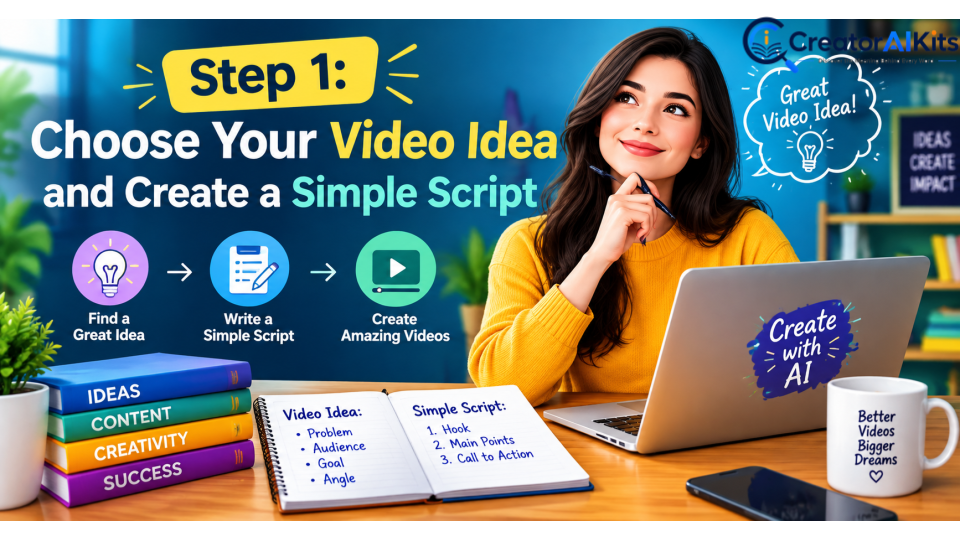
Before opening an AI video generator, decide what you want the viewer to see, learn, or feel.
Start with one clear goal. For example:
- Explain a product or service
- Create a YouTube Short
- Make an educational video
- Promote a business
- Create a social media Reel
- Tell a short visual story
- Turn an article into video content
For your first project, avoid trying to create a 10-minute movie. AI video generation works particularly well when you break a larger idea into short, focused scenes.
Simple script structure
A beginner-friendly video can follow this structure:
Hook → Main message → Visual examples → Conclusion or call to action
For example:
Hook: AI can turn a simple idea into a video.
Main message: You only need a good prompt and the right AI tool.
Visual: Show the AI generating a cinematic scene.
CTA: Try creating your first AI video today.
Keep each scene focused on one main action.
Beginner tip: Write the script first. Then divide it into individual scenes instead of asking an AI video model to generate everything at once.
Step 2: Choose an AI Video Generator and Write a Strong Prompt
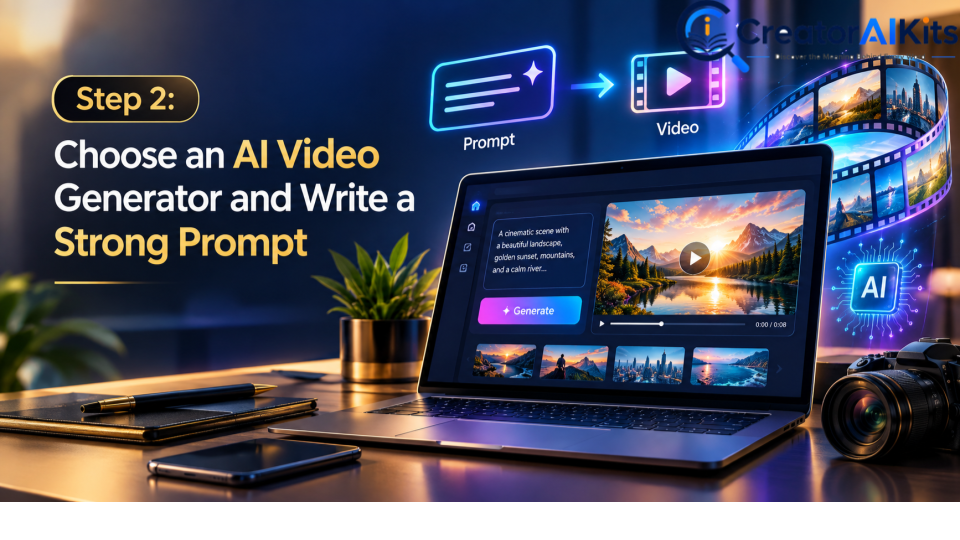
The right tool depends on the type of video you want to create.
Current AI video platforms offer different workflows, including text-to-video and image-to-video. For example, Google’s Veo 3.1 supports text-to-video, image-to-video, reference images, character consistency, scene extension, camera controls, and native audio. Runway Gen-4.5 currently supports both text-to-video and image-to-video with detailed control over motion and camera direction.
A simple AI video prompt formula
Use:
Subject + Action + Setting + Camera + Style + Lighting
For example:
A young content creator working on a laptop in a modern home office, typing quickly while AI video scenes appear on the screen, slow cinematic camera push-in, realistic commercial style, soft blue and purple lighting.
The important point is to describe what should happen, not just give the AI a broad topic.
For image-to-video generation, focus especially on the motion, camera movement, and progression of the scene. Runway’s current prompting guidance specifically recommends describing the motion and camera work rather than unnecessarily repeating what is already visible in the input image.
Text-to-video vs. image-to-video
| Method | Best For |
| Text-to-video | Creating a scene from a written description |
| Image-to-video | Animating an existing image |
| Reference images | Maintaining visual or character consistency |
| AI video + audio | Scenes that need dialogue, ambience, or sound effects |
Best beginner approach: Start with one short scene and refine the prompt instead of trying to generate an entire video in one attempt.
Step 3: Generate Your Video and Review the Results
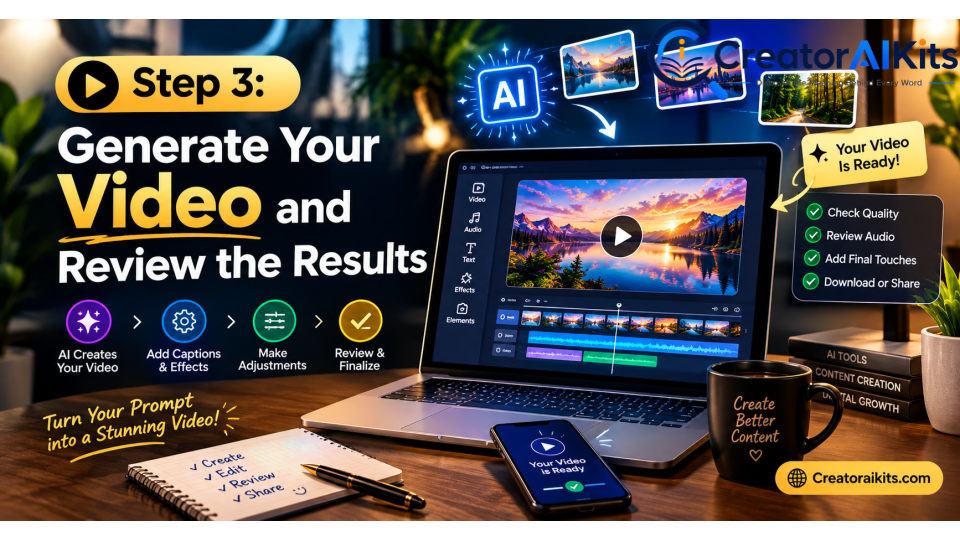
Now enter your prompt, select the appropriate settings, and generate the clip.
Do not expect the first generation to be perfect.
Professional AI video creation is often an iteration process:
Generate → Review → Adjust prompt → Generate again → Select the best result
Check the generated video for:
- Natural movement
- Correct subject and action
- Consistent characters
- Camera movement
- Facial expressions
- Hands and objects
- Lighting
- Background details
- Audio or dialogue, if generated
- Unwanted visual artifacts
Current tools can produce increasingly sophisticated video, but different models have different strengths and limitations. For example, Veo 3.1 emphasizes realism, prompt adherence, reference images, consistency, camera controls, and native audio, while Runway Gen-4.5 emphasizes prompt-controlled motion and visual fidelity.
Add your own AI video here
Recommended placement for your existing AI video: Put your video directly after this section.
Add a short caption such as:
Example: An AI-generated video created using an AI video generation workflow.
This makes the article more practical because readers can see what the process can produce.
Important: Only describe the tool, workflow, or results that you actually used. This is better for trust than claiming you personally tested tools you did not test.
Step 4: Edit the Best Clips and Add Audio, Captions, and Branding
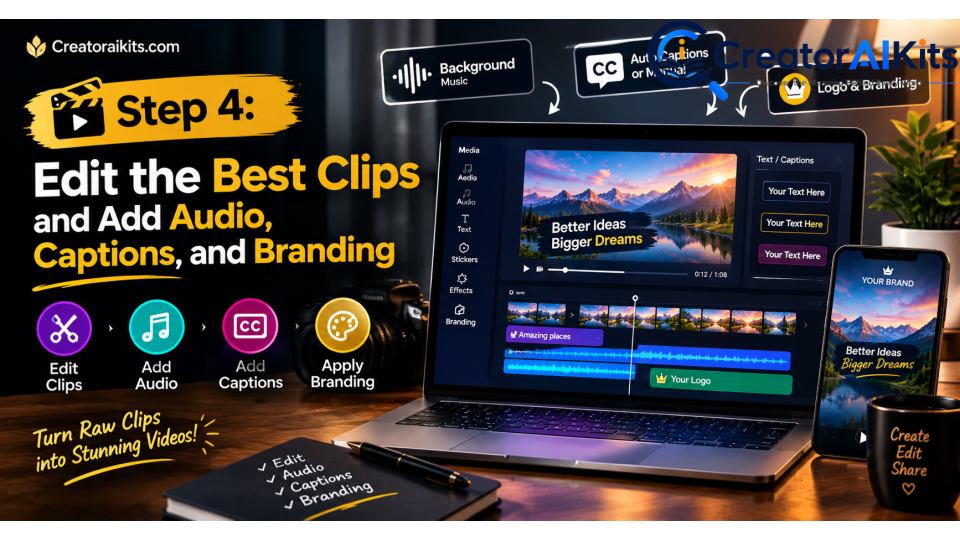
AI generation creates the raw material. Editing turns those clips into a finished video.
Choose your strongest clips and arrange them in a logical order. Then remove unnecessary sections and improve the pacing.
Depending on your video, you can add:
- Voiceover
- Background music
- Sound effects
- Captions or subtitles
- Transitions
- Logo or branding
- On-screen text
- Intro or outro
- Call to action
Some modern AI video models can already generate audio with video. Google’s Veo 3.1, for example, can generate dialogue, sound effects, and ambient audio natively.
However, you should still review the audio carefully before publishing.
Match the video to the platform
| Platform | Common Format |
| YouTube | 16:9 |
| YouTube Shorts | 9:16 |
| TikTok | 9:16 |
| Instagram Reels | 9:16 |
| Instagram feed | 1:1 or 4:5 |
Always check the current platform requirements before exporting because specifications can change.
Step 5: Export, Publish, and Improve Your AI Video
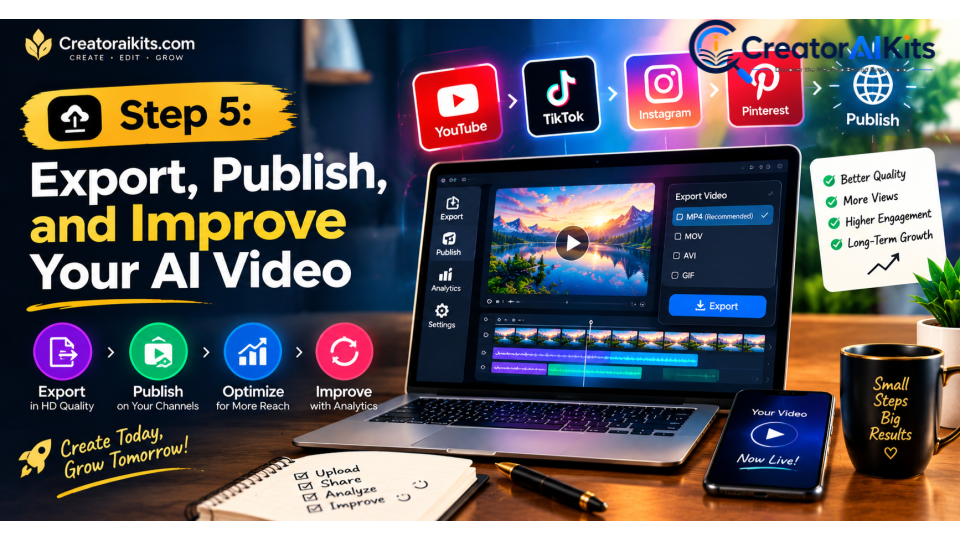
Once your video looks and sounds good, export it in a suitable format and resolution for the platform where you plan to publish it.
Before publishing, use this final checklist:
AI Video Publishing Checklist
- ✓ Does the opening immediately explain or show the main idea?
- ✓ Is the video easy to understand without unnecessary scenes?
- ✓ Are captions readable?
- ✓ Is the audio clear?
- ✓ Are there any obvious AI-generated mistakes?
- ✓ Is the aspect ratio correct?
- ✓ Is the title relevant and descriptive?
- ✓ Does the thumbnail accurately represent the video?
- ✓ Does the video provide something useful or entertaining?
If the video is published on your website, make the video easy for both users and search engines to understand. Google recommends making videos discoverable with appropriate video metadata and supports structured data such as VideoObject; videos can potentially appear in Google Search, Video mode, Images, and Discover.
The best improvement strategy
Do not stop after publishing your first video.
Look at viewer retention, clicks, comments, and other available performance signals. Then improve your next video based on what your audience actually responds to.
The Simple AI Video Workflow
If you are completely new to AI video creation, remember this:
Idea → Script → Prompt → Generate → Review → Edit → Publish
You do not need to master every AI video tool at once. Learn one workflow, create several small projects, and improve your prompts and editing with every video.
Frequently Asked Questions
Can beginners make AI videos?
Yes. Modern AI video generators allow beginners to create videos using text prompts, images, or other inputs without traditional filming equipment or advanced video-production skills.
Do I need a powerful computer to make AI videos?
Usually, no. Many AI video generation services process the generation in the cloud, so you can create videos without a high-end local GPU.
What is the best AI video generator?
There is no single best tool for every project. The right choice depends on whether you need cinematic footage, realistic people, image animation, consistent characters, native audio, social media content, or another specific workflow.
Are AI videos free to make?
Some AI video platforms offer free credits or limited free access, while more advanced generation typically requires a paid plan or credits. Pricing and limits change frequently, so check the tool’s current pricing page before starting a project.
How long should my first AI video be?
For a beginner, starting with a short video is usually easier. Create a few focused clips rather than trying to generate a long continuous scene in one attempt.
How can I make AI videos look more realistic?
Use specific prompts, clear actions, controlled camera movements, consistent reference images when supported, and multiple generations. Then select and edit the strongest clips rather than publishing the first result.
Conclusion
Learning how to make AI videos does not have to be complicated.
The most practical workflow is simple: choose a clear idea, write a focused prompt, generate short clips, review and edit the best results, and publish the finished video in the right format.
The biggest improvement usually comes from the quality of your instructions and your willingness to iterate. Start with one small project, learn what works, and gradually experiment with more advanced AI video features such as image-to-video, character consistency, camera control, and AI-generated audio.
AI video technology is evolving quickly, but the fundamental workflow remains straightforward: create with purpose, review carefully, and improve before you publish.

Welcome to CreatorAIKits! I’m passionate about learning and exploring AI tools, creativity, and technology.
I’m continuously researching and gaining hands-on experience with different AI tools and technologies.
My goal is to share simple, useful, and practical AI information for beginners and everyday users.
Thanks for visiting CreatorAIKits!