Introduction
Let’s be honest: staring at a 100-page PDF report or a dense academic paper is exhausting. If you are like me, you’ve probably wished a million times that you could just press “play” and listen to the whole thing while making coffee or commuting.
That is exactly where Google NotebookLM feels like absolute magic.
You upload a PDF, and instead of giving you a boring text summary, it generates a full-fledged Audio Overview. We are talking about a highly realistic, conversational podcast where two AI hosts banter, laugh, and break down your document’s core ideas. You can even choose different formats, tweak the depth, and interact with the hosts.
But simply clicking “Generate” is just scratching the surface.
After using this tool extensively to dissect everything from boring user manuals to complex financial credit card terms and conditions, I’ve discovered a few game-changing tricks. In this guide, I will share 5 practical NotebookLM hacks that will turn you into a document-crunching superhuman. You’ll learn how to get better audio results, what mistakes to completely avoid, and how to make this AI tool sound exactly the way you want.
What Is Google NotebookLM and Why Is It a Game-Changer for PDFs?
Google NotebookLM is an experimental AI research assistant powered by Google’s advanced language models. Unlike general AI chatbots that pull answers from the vast internet, NotebookLM is strictly grounded in the sources you upload. It only knows what you tell it to know.
This makes it incredibly powerful. If a document is too long to tackle in one sitting, or if you just want to understand the big picture before diving into the fine print, NotebookLM acts as your personal briefing team.
How NotebookLM Understands Your Uploaded Documents
When you drop a file into NotebookLM, it instantly indexes the text, maps out the core concepts, and builds a mini database. Instead of hitting Ctrl + F and hunting for keywords, you can literally chat with your document as if it were an expert sitting across from you.
Can NotebookLM Turn a PDF Into an Audio Conversation?
Yes, and this is its standout feature. NotebookLM’s Audio Overview feature doesn’t just read text out loud like an old-school screen reader. It creates a dynamic discussion between two virtual hosts. Depending on the version you are using, you can choose styles like Deep Dive, The Brief, Critique, or Debate. You can even type a specific prompt to tell the hosts exactly how to behave.
How to Turn a PDF Into Audio With NotebookLM (Step-by-Step)
Getting your first audio podcast generated takes less than two minutes. Here is the exact workflow:
Step 1: Upload Your PDF to a Notebook
Go to the NotebookLM dashboard, create a new notebook, and upload your target PDF.
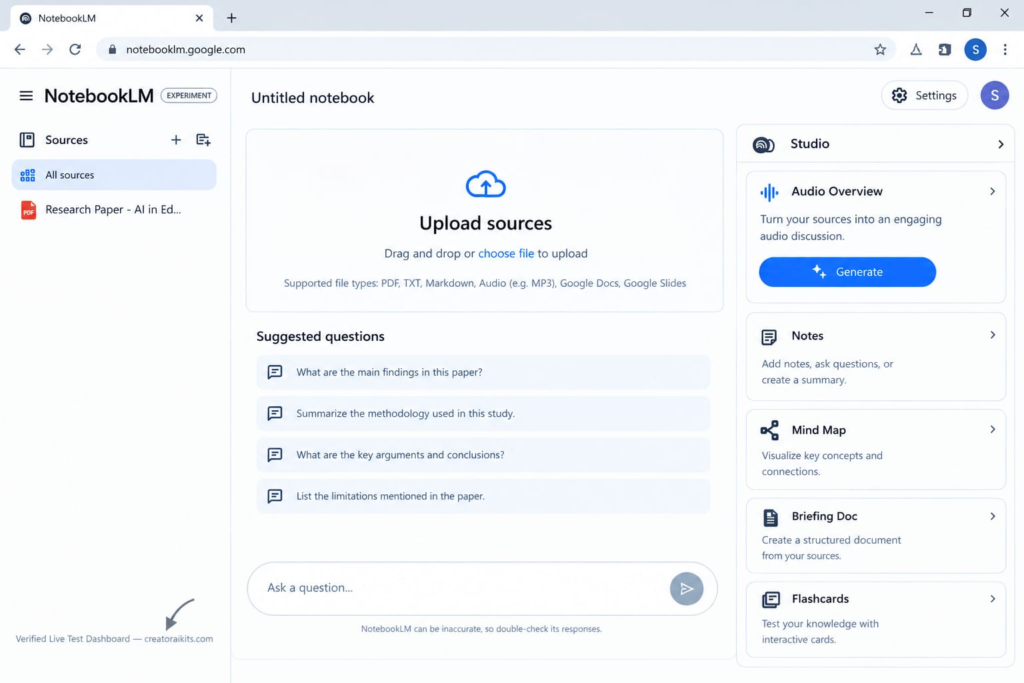
“Here is a step-by-step visual guide on how to use Google NotebookLM for the first time. Step 1 shows the central upload area where you can drag and drop your research papers or PDF files. Once your documents are fully processed, Step 2 guides you to the Studio panel on the right side, where you can click the ‘Generate’ button under Audio Overview to automatically create an engaging audio discussion from your sources.”
Step 2: Open the Studio Panel
Once your source document is uploaded and processed, look over to the right side of the interface to locate the Studio panel. This is where the magic happens.
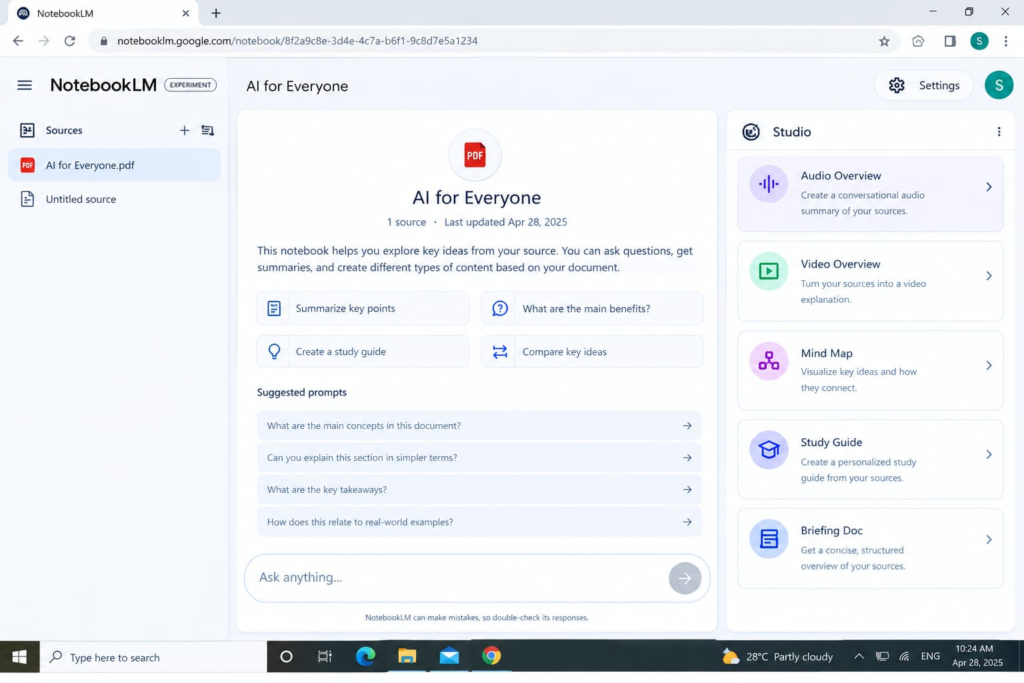
“In this screenshot from my personal dashboard, you can see how seamless the Google NotebookLM interface is after uploading a document. On the left panel under Sources, my uploaded file ‘AI for Everyone.pdf’ is successfully loaded. Once the document is in place, NotebookLM populates suggested prompts in the center to help dive into the text. To create the famous AI podcast discussion, you simply need to navigate to the ‘Studio’ panel on the right and click on the ‘Audio Overview’ tab as shown by the red arrow.”
Step 3: Generate an Audio Overview
Click on the Audio Overview button. Here, you can select the format that best fits your immediate needs. For a quick snapshot, select The Brief. For a comprehensive breakdown, opt for Deep Dive.
Step 4: Customize the Conversation
Do not just stick to the default settings! Use the customization prompt box to steer the hosts. For example, you can type: “Focus heavily on the financial data section and explain it like I’m a beginner.”
Screenshot 3: Close-up of the prompt box where users can type instructions to customize the Audio Overview focus.
5 Secret NotebookLM Hacks to Master Your PDFs
Hack 1: Explain It Like a Conversation (The “Beginner” Hack)
Don’t just ask the AI for a generic summary. If you are dealing with highly technical jargon, command NotebookLM to explain the concepts using everyday metaphors.
💡 Real-World Example: I recently had to read through a 40-page terms and conditions document for a premium travel credit card. It was filled with confusing language about APR, revolving balances, and complicated point-multiplier categories. Instead of reading it, I uploaded the PDF to NotebookLM and prompted the hosts: “Explain this credit card’s rewards structure like you’re telling a friend how to maximize cash back without getting into debt.” The resulting audio explained the card perfectly in under 7 minutes!
Hack 2: Turn Research Papers into “Pre-Read” Podcasts
Reading a 20-page academic paper or corporate market analysis from scratch takes hours. Instead, run the Audio Overview first. By listening to the AI hosts debate the main arguments while you walk or wash dishes, you build a mental framework. When you finally sit down to read the actual text, your brain will instantly recognize the concepts, cutting your reading time in half.
Hack 3: Use Laser-Focused Follow-Up Questions
The initial audio or summary is just the starting point. Use the chat bar to grill your document for the hard truths. Don’t ask vague questions. Instead, try copy-pasting these exact prompts:
- “What is the absolute weakest argument or limitation mentioned in this PDF?”
- “What specific data or evidence does the author use to back up their main claim?”
- “Break down the step-by-step methodology used here into a simple bulleted list.”
Hack 4: Compare Multiple PDFs Without Reading Cross-References
NotebookLM allows you to upload multiple sources into a single notebook. If you have two competing business reports, or two different credit card agreements, upload them both.
Screenshot 4: NotebookLM sidebar showing multiple PDF sources uploaded simultaneously into one single notebook.
You can then prompt the tool: “Compare Document A and Document B. Where do they explicitly disagree on costs, and which one offers a better return on investment?” The AI will synthesize the differences across both documents flawlessly.
Hack 5: Build a Custom, Interactive Exam Prep Partner
If you are a student or professional prepping for an evaluation, turn your study PDFs into an active tester. Upload your material and tell NotebookLM: “Act as an aggressive interviewer. Based strictly on this PDF, generate 5 challenging multiple-choice questions. Wait for my answer before giving me feedback.” This shifts you from passive listening to active learning.
How to Get the Absolute Best Audio Quality
To prevent the AI hosts from rambling or missing the point, follow these pro-tips:
- Define a Clear Goal First: Before hitting generate, know exactly what you want out of the text. Are you looking for hidden fees, structural flaws, or just a quick overview?
- Direct the Audio Hosts Explicitly: Use the customization field to set their expertise level. Telling them to “Speak like investigative financial journalists” yields vastly superior results compared to letting the AI use its default persona.
- Watch Out for Inaccuracies: Let’s keep it real—AI can hallucinate. Google explicitly warns that Audio Overviews can contain glitches or minor factual errors. Treat the audio as an engaging guide, not the ultimate legal truth.
NotebookLM Audio vs. Traditional Reading: A Direct Comparison
| Feature / Scenario | NotebookLM Audio Overview | Reading the Original PDF |
| Best For | Getting the big picture, conceptual understanding, multi-tasking. | Finding exact quotes, checking formulas, viewing data charts. |
| Speed | 🚀 Fast. Converts hours of text into a 5-10 minute podcast. | 🐢 Slow. Requires dedicated time and deep focus. |
| Risk of Error | Moderate. AI hosts can occasionally misinterpret nuances. | Zero. You see exactly what the author wrote. |
| Ideal Use Case | Driving, exercising, or reviewing a document before a meeting. | Legal compliance, signing contracts, or quoting research data. |
Common Mistakes That Will Ruin Your Experience
- Uploading “Scanned” Images Instead of Clean Text: If your PDF consists of low-quality photos of pages rather than selectable digital text, NotebookLM will struggle to read it accurately. Make sure your files are OCR (Optical Character Recognition) cleared.
- Treating the Audio as a Legal Replacement: Never skip reading the actual document if you are signing a contract or analyzing a high-stakes financial product. Use the audio to find the important sections, then read those specific pages with your own eyes.
- Asking Vague Questions: Asking “Tell me about this document” results in a boring, generic answer. Asking “What are the top three financial risks highlighted in section 4?” gets you gold.
💡 Pro Tip
NotebookLM can make research and learning much easier, but getting the best results also depends on knowing how to choose the right AI tool, write effective prompts, and review AI-generated answers. For a practical framework, check out our guide. How to Use AI Tools Effectively in 2026: 10 Practical Steps to build a smarter and more reliable AI workflow.
FAQs
What Is Google NotebookLM and Why Is It a Game-Changer for PDFs?
Google NotebookLM is an experimental AI research assistant powered by Google’s advanced language models. Unlike general AI chatbots that pull answers from the vast internet, NotebookLM is strictly grounded in the sources you upload. It only knows what you tell it to know.
Can NotebookLM Turn a PDF Into an Audio Conversation?
Yes, and this is its standout feature. NotebookLM’s Audio Overview feature doesn’t just read text out loud like an old-school screen reader. It creates a dynamic discussion between two virtual hosts.
How to Turn a PDF Into Audio With NotebookLM?
Getting your first audio podcast generated takes less than two minutes. Here is the exact workflow:
- Upload Your PDF to a Notebook.
- Open the Studio Panel.
- Generate an Audio Overview.
- Customize the Conversation.
Final Verdict: Is It Worth It?
If your daily life involves drowning in PDFs, white papers, or study guides, Google NotebookLM is absolutely worth your time.
The real power of this tool isn’t just that it reads text to you—it makes information accessible and conversational. By listening to the main ideas first, you free up your mental bandwidth to focus deeply on the details that truly matter.
Upload one dense PDF today, apply these hacks, and experience the future of reading for yourself.

Welcome to CreatorAIKits! I’m passionate about learning and exploring AI tools, creativity, and technology.
I’m continuously researching and gaining hands-on experience with different AI tools and technologies.
My goal is to share simple, useful, and practical AI information for beginners and everyday users.
Thanks for visiting CreatorAIKits!